Author:Military Drone Manufacturer TIME:2026-11-25
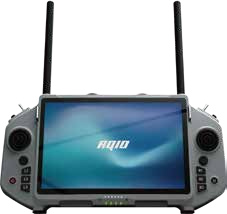
For an RQ10 Android Ground Control Station, the main screen-planning decision is which information leads: the map or the camera window. Its listed 10.1-inch, 1920 × 1200 display gives the application a defined canvas, but the best use of that canvas depends on the job. A location-led survey may favor a readable map with occasional video; a visual inspection may need the opposite. Decide which view owns the screen and what context must stay beside it. This guide uses practical page layouts and a task matrix to help an RQ10 buyer choose a useful workspace before asking an application to display everything at once.
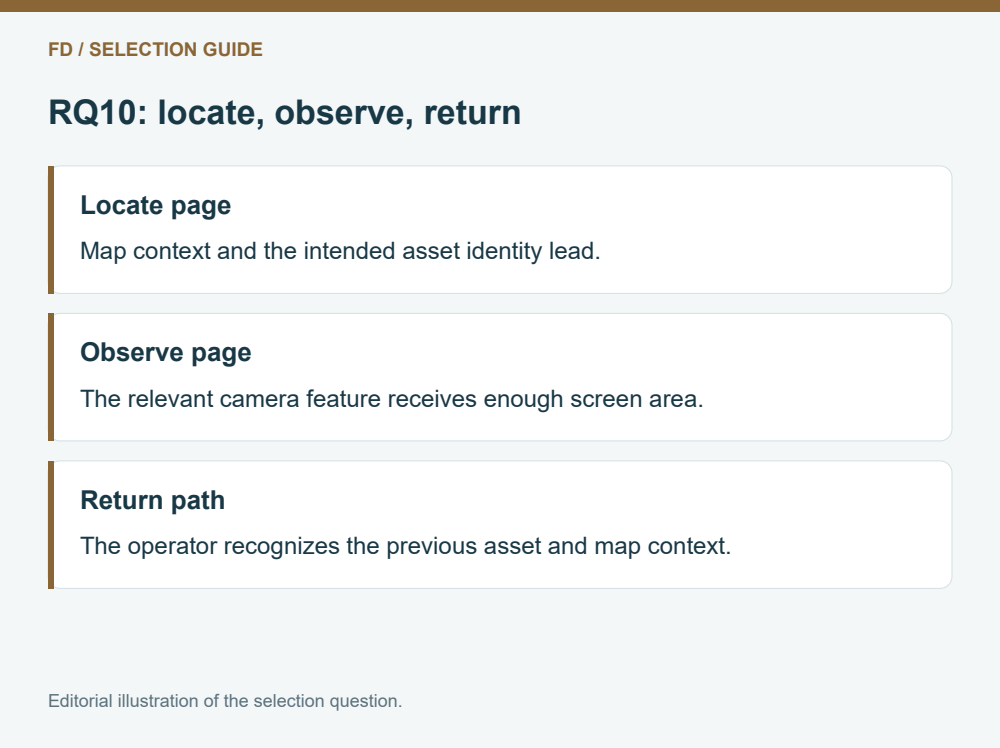
Start with a normal civil UAV observation. Does the operator first locate an asset and then open the camera, or first examine an image and then look for its location? That order reveals which view deserves priority. A large map can be useful for finding the next asset, while a large video area can be more useful when interpreting a visible feature.
Choose a main view and a secondary view for each stage. These can change during the session; they do not have to share the screen equally all the time. A deliberately large camera pane and a small contextual map may be clearer than two competing medium panes.
The RQ10 brochure identifies Android 14 and a Qualcomm SM6225 platform with 4 GB memory and 64 GB storage. Those facts define the reference terminal. They do not prove that the chosen application can freely resize panes, preserve a selected asset or run a particular multi-window mode.
Show the map label, asset identity and the context needed to choose the correct observation. Video can be secondary at this moment.
Let the camera feature occupy enough of the screen to interpret. Keep the asset identity and important status visible without covering it.
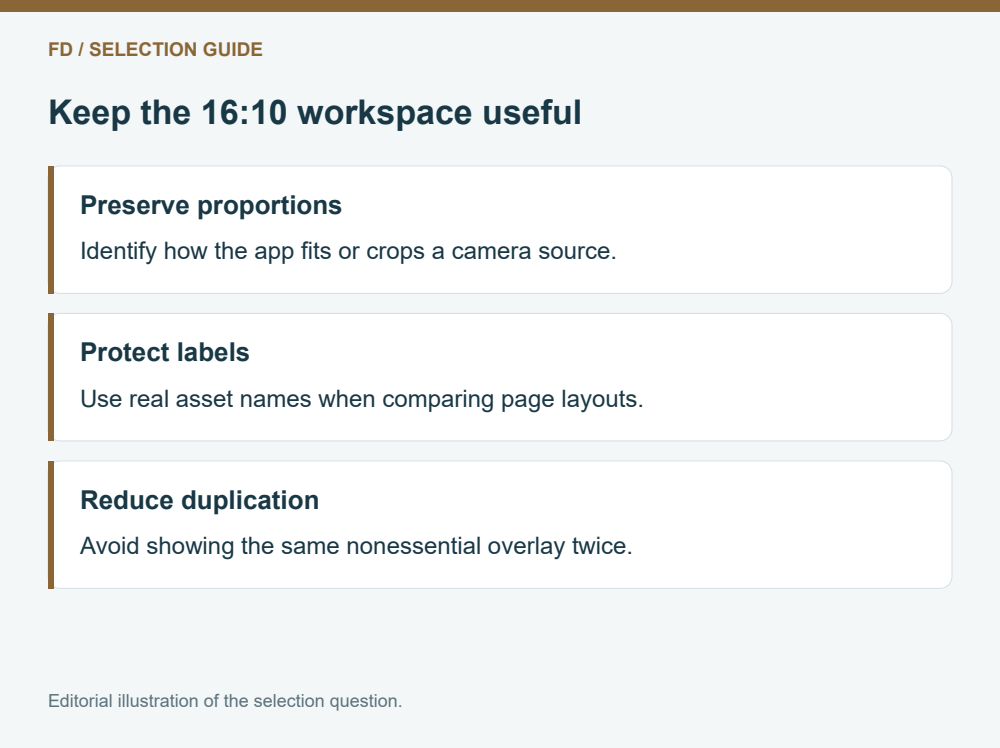
These are editorial page ideas, not RQ10 screenshots. Use your application's real labels and a representative camera image when evaluating them. A layout that works with short sample names may become crowded when a working asset name spans several words.
| Work pattern | Suggested emphasis | Question for the application trial |
|---|---|---|
| Find many nearby assets | Map-led page, concise video reference | Can the operator distinguish the correct label? |
| Inspect one visible feature | Camera-led page, stable asset identity | Do controls hide the detail being assessed? |
| Compare location and view | Both visible with clear source labels | Does each pane remain large enough? |
| Review a long status explanation | Separate readable detail page | Can the operator return to the same context? |
Use the matrix to select an application layout, not to claim an included software feature. Some apps support only a fixed arrangement. Others allow a picture-in-picture view that is convenient for context but unsuitable for examining fine camera detail. That distinction is easier to see with an actual task than from a feature list.
The RQ10 reference display is described as a 10.1-inch IPS panel with a 1920 × 1200, 16:10 grid. That extra vertical shape can be useful for application chrome around a video rectangle, depending on software design. It does not require the camera to capture a 16:10 image and does not prove that every app uses the available height efficiently.
For example, a camera view with a different aspect ratio may be fitted within the page with space around it. That space might hold status, or it may simply remain unused. Cropping the camera view to fill a pane changes visible context; fitting the whole image preserves context but may leave a smaller picture. Ask which behavior the application uses.
Do not compare screenshots solely by how full the screen looks. A picture that fills every corner may have lost edge content, while a slightly smaller one may preserve the full scene the operator needs.
Two common sources of crowding are long map labels and camera overlays. A location label may extend over a marker; a control panel may extend over the feature being inspected. More display area helps only if the app allocates it sensibly. Decide which labels are essential and how the application distinguishes the selected asset from nearby ones.
On the camera side, look for unnecessary duplication. If the same value appears both in the video overlay and in an app strip, it may consume space twice. Removing duplicate presentation is different from removing needed information. The selected video source and relevant status should remain clear.
The brochure lists touch input together with multifunction and camera-related physical controls. Their installed assignments depend on the app and connected system. A usable camera command on a physical input can reduce screen clutter, but only when the chosen setup actually implements it.
Use several representative asset names, including one long name and two that resemble each other. Ask the operator to locate the intended asset, open its relevant camera view, interpret a visible feature and return to the map. This exercise reveals whether the interface preserves context and whether the secondary pane has become too small.
Include an ordinary status message in the sample. Some layouts look clear until a notification opens over a critical part of the page. Identify where the message appears and how the operator gets back to the previous view. This is a usability exercise using representative content; it is not evidence of flight performance or a demonstrated radio range.
Compare two layouts with the same source content. If one feels clearer, describe what changed: fewer competing labels, a larger image window or an easier return path. Those observations give a supplier useful information without inventing a numerical productivity gain.
The RQ10 terminal, communication equipment, aircraft endpoint and app are separate parts of the configuration. Its listed connector families and brochure video-module arrangements do not establish which source arrives in the app or which modules a particular offer includes. Provide the desired camera and map behavior alongside the hardware request.
A sensible RQ10 requirement might specify a camera-led inspection page with a visible asset name and an easy return to a detailed map. Another might specify a map-led session with a small video reference. Both use the same screen canvas while serving different decisions.
Take the selected application view into the product discussion. Include the source camera, application build and information that must stay together. The result is a workspace requirement that can be demonstrated on a proposed terminal, rather than a promise based only on screen size. Brightness, accessories and operating duration remain separate buying questions.
Imagine an RQ10 user selecting among several nearby equipment units with similar names. The camera-led page shows a useful image, but its small map hides the end of each asset label. A map-led page distinguishes the labels, while its small video pane is inadequate for the subsequent visual observation.
A workable proposal could preserve the selected asset identity when moving between those pages, if the application supports that behavior. Another proposal could use a shorter on-screen identifier linked to an unambiguous full asset record. The buyer should evaluate the actual result rather than assume the 10.1-inch panel makes either software behavior automatic.
Use two similar names and one long name in the demonstration. Select the intended unit, observe the representative feature, then return to context. The test asks whether the user knows which asset is being examined at each stage. It gives the screen's map-and-camera allocation a clear purpose and can reveal that the important requirement is a persistent identity label, rather than an additional video window.
No. The screen supplies area and pixels. The application and supplied Android image determine which window arrangements are available. An illustration of a proposed layout should not be treated as an included app feature.
Only if the task benefits from equal attention and both remain readable. Many sessions naturally alternate between locating and observing. A clear main view with concise context can be more useful than a permanent equal split.
They answer different questions. The saved file can support later image review, while the received window serves the operator now. Identify each endpoint and keep source content comparable when judging layout.
No. Software can fit a source with its original proportions. Ask whether it fits, crops or stretches the image, because those choices affect context and how the feature appears.
A representative application page, your map and camera priorities, the source camera and any required physical camera commands. That makes the workspace discussion concrete without assuming every video module is included.
Review RQ10 Android Ground Control Station product information.

 Tel: +86-15059599996
 Email: info@fpvdroneskit.com
 MP/WhatsApp: +86-15059599996
 Manufacturer Address:Quanzhou Valley Nanan Science and Technology Innovation Center, No. 89 Shijing Avenue, Shijing Town, Nanan City, Fujian Province