Author:Military Drone Manufacturer TIME:2026-11-29
During a camera-heavy civil inspection, the RA7 Handheld Ground Station needs to keep the picture usable while the operator changes a supported camera function and returns to context. Its source brochure identifies multifunction keys, a camera-centering wheel and a zoom button, but the final behavior belongs to the application and connected payload. A useful trial therefore pairs the actual camera view with the proposed input assignments. This guide helps select those functions without inventing a display size or borrowing figures from another terminal, because the RA7 source contains conflicting screen and enclosure entries.
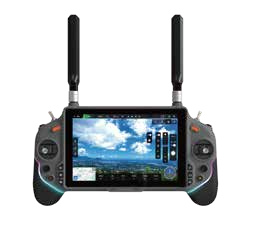
List the actions that occur while an operator examines a building component, vegetation condition or another lawful civil inspection subject. The team may need to change between documented camera views, adjust a supported gimbal position or trigger an image capture. Those are examples of desired functions, not claims that every RA7 configuration supplies them.
Mark which actions happen often enough to justify a physical input. A rarely used configuration menu does not necessarily deserve the most accessible button. Conversely, an action that repeatedly opens a panel over the observed feature may be a strong candidate for a supported physical assignment.
The RA7 brochure's camera-related controls give the discussion a model-specific starting point. The buyer should still ask how each control is exposed to the intended app and what the actual payload accepts. A labeled button is not proof of an end-to-end camera function.
| Desired result | Possible input role to discuss | Evidence that matters |
|---|---|---|
| Move a supported gimbal view | An appropriate assigned physical control | The correct payload responds in the intended application |
| Return a camera to its documented center | The brochure-listed centering wheel or supported assignment | The defined camera action occurs without hiding its view |
| Change supported magnification | The brochure-listed zoom button where implemented | Camera zoom and app enlargement are identified separately |
| Change image source | A clear app command or documented key assignment | The source label follows the selected picture |
The table helps prioritize a configuration request. It is not a universal assignment map. In particular, the listed 16-channel reference does not say that 16 arbitrary payload functions are available or that every key is directly visible to every application.
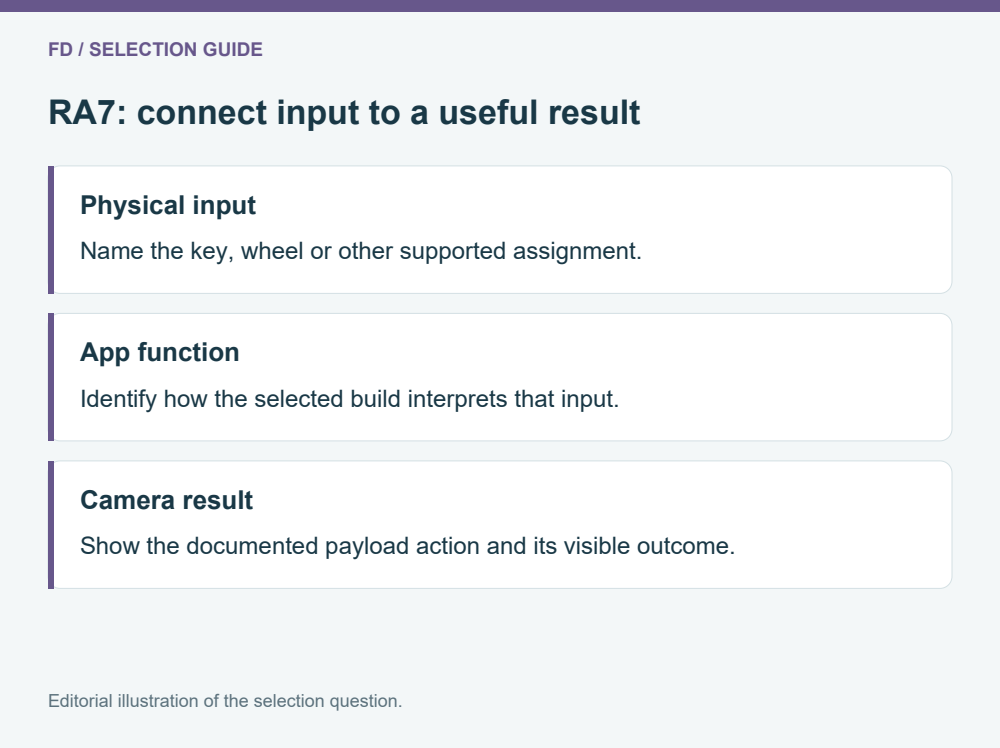
A camera-heavy session often fails at the moment an operator opens a control panel: the panel covers the very feature being examined. The solution may be a better app arrangement, a smaller on-screen control area or an integrated physical assignment. Decide which approach the supplied system actually supports.
Use a representative camera feature and perform the intended command while watching it. Does the picture remain large enough? Can the operator tell which source is selected after the command? Is an important status label pushed away? These questions evaluate the interface around an observation without claiming a particular image resolution.
The RA7's central display and surrounding controls are visible in its source photographs. Those photographs support a discussion of arrangement. They do not establish the application's pane size, the supplied software package or the image quality of an airborne camera.
The brochure's zoom-button wording is useful only when its implemented function is understood. A camera may provide documented optical or digital magnification, while the app may enlarge an already received picture. These are different operations. This article does not assign either capability to an unspecified camera.
For an inspection buyer, the question is what changes in the image when the proposed input is used. A camera-side change may alter the source framing. An app enlargement may simply make received pixels larger on the screen. Label the behavior during a sample comparison so the team can judge whether it supports the observation.
Also retain enough context to recognize the selected feature. An enlarged detail can be easier to see yet harder to locate within the broader scene. The best input choice helps the operator move between detail and context clearly rather than maximizing a zoom number.
The RA7 brochure identifies the Allwinner A733 processor. For this camera workflow, ask which video and physical-input functions the selected build exposes. Its 8 GB LPDDR4X memory specification describes the application platform; the listed 64 GB UFS capacity concerns storage. The brochure offers Android 15 or, alternatively, Ubuntu 20.04, so name the image that will host your camera application. These facts do not demonstrate dual boot, a particular frame rate or support for every ground-control program.
Choose the intended image and application build as part of the offered system. The important issue for a camera-led workflow is whether that build receives the proposed video and accesses the required inputs. A program can display a picture yet lack the physical-control integration the buyer expected.
Avoid substituting processor comparisons for this demonstration. A more impressive computing label does not establish the missing camera interface. Give the software supplier the actual input-to-result table so the integration discussion centers on useful actions.
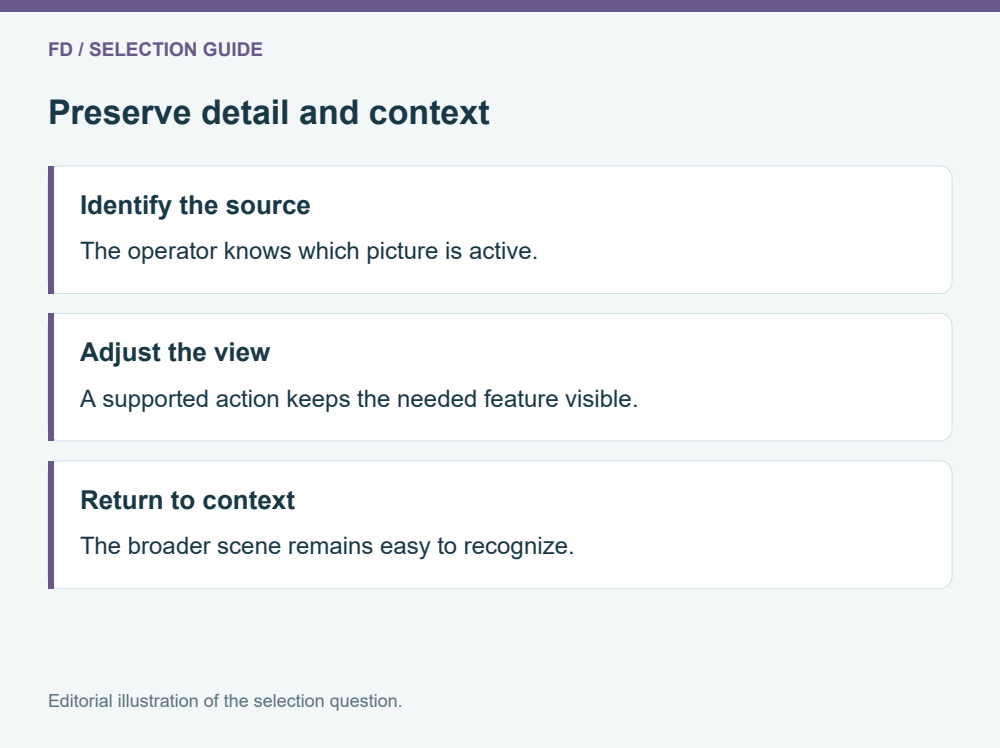
Try a short sequence using the intended camera: identify the current view, perform one supported view adjustment, return to a broader context and select the next needed action. Keep the exercise focused on the interface and perform it in an appropriate safe test arrangement managed by the integrator.
Observe where the operator hesitates. An unlabeled source change, a command with no visible result or a menu that obscures the picture can matter more than the number of inputs. Ask whether a clear on-screen indication or a different documented assignment can remove the ambiguity.
Use the same sequence when comparing two proposed app configurations. Describe the differences in plain terms: the source is easier to identify, a frequently needed command is accessible or the image stays visible. Do not invent measured productivity or precision improvements from an informal demonstration.
RA7 source entries for display size, brightness, enclosure dimensions, mass and duration are conflicting or shifted. Those figures are omitted here rather than filled with RQ10 or RA10 values. If a physical measurement is decisive for your installation or carrying arrangement, obtain a corrected RA7-specific sheet and evaluate the offered sample.
For this camera-heavy selection task, the supported input behavior and interpretable picture can still be evaluated directly. A buyer can decide whether the current application suits the job while keeping unresolved numeric specifications visible in the quotation discussion.
Provide FD with the camera model, desired camera actions, proposed software environment and the picture information that must remain visible. Ask for a defined RA7 configuration based on those functions. It is a more useful purchase request than choosing by an assumed screen diagonal or treating every camera-related label as a delivered capability.
Suppose one RA7 proposal places every camera command in an on-screen menu. Another proposes using the brochure-listed camera-related inputs for the few actions performed repeatedly during an observation. The second proposal is attractive only when the selected application and camera actually implement those assignments.
Choose one required action, such as the camera's documented return-to-center function, and ask how the operator invokes it in each proposal. Watch whether the image remains visible and whether the resulting view is clearly understood. Then assess the required magnification action separately: a camera-side zoom command and an app enlargement should not receive the same description.
If the physical assignment is unavailable but the on-screen method remains clear and unobtrusive, the first proposal may still serve the inspection. If repeated menus cover the relevant feature, the buyer has identified a concrete integration requirement. This comparison does not require an invented RA7 screen diagonal or a performance claim about its A733 processor. It asks whether the camera and controls work together for the actual action. The answer is more useful than counting unassigned buttons or assuming that a camera-shaped icon proves a completed payload function.
No. The camera’s own specification establishes optical capability. The supplied app and control profile determine what the input does. It could require integration, and app-side enlargement must be distinguished from a camera-side function.
The available RA7 source has conflicting or shifted display entries. Assigning another model’s number would create false precision. Obtain a corrected RA7 sheet if the screen dimension affects the purchase.
The reference lists 16 channels, but that does not assign a function to each input. Camera, aircraft, application and profile together determine the implemented roles.
No. The photo shows the terminal arrangement. Any interface pictured on a display is illustrative unless the offered software package identifies that exact build and its supported functions.
Ask to see the proposed camera view with the small set of functions your inspection uses: source identification, a supported view adjustment and return to context. This makes the input and image relationship visible without requesting a generic feature demonstration.

 Tel: +86-15059599996
 Email: info@fpvdroneskit.com
 MP/WhatsApp: +86-15059599996
 Manufacturer Address:Quanzhou Valley Nanan Science and Technology Innovation Center, No. 89 Shijing Avenue, Shijing Town, Nanan City, Fujian Province